

Appearance
General Settings
General Tab
The General tab focuses on the public-facing aspects of your website. These are the settings that directly influence how your brand is presented to visitors.
Company Information
The fields in this section are crucial for establishing your company's official presence and providing essential contact details.
- Company Name (shown in footer): This is the formal, legal name of your business. It is often a key part of the website's footer for legal and copyright purposes, reassuring visitors of your brand's authenticity. A consistent company name across all online platforms helps to build trust and brand recognition.
- Company Address (shown in footer): This field is used to display your physical business address. In addition to being a contact point, including a physical address in the footer can enhance credibility, particularly for local businesses. This also helps with local search engine optimisation (SEO).
- Company Telephone (shown in header): The telephone number you enter here is typically featured prominently in the website's header. Placing this in an easily accessible location encourages direct communication and can be a significant factor for potential customers who prefer to speak to a person.
- Company Email (shown in header): Similar to the telephone number, this email address is a central point of contact. It is often included in the header to provide an immediate way for users to send inquiries or messages. Ensuring this email is regularly monitored is essential for good customer service.
Site Information
These settings define your website's unique digital identity, from its name to its logos.
- Site Name: The Site Name is the overarching title of your website. It is used in the browser's title bar, often in conjunction with the page name (e.g., "About Us | My Site Name"). This name is a fundamental element of your SEO, as search engines use it to understand your site's core purpose.
- Main Logo (Light): This is where you upload the primary version of your company's logo. It is designated as the 'light' version because it is intended to be used on dark backgrounds, such as a black header or a footer. A correctly chosen light logo ensures your branding remains clear and visible across different design contexts.
- Main Logo (Dark): This is the contrasting version of your logo, designed for use on light backgrounds, such as the main body of a page. Having both light and dark versions allows the site to adapt to different layouts and themes while maintaining brand consistency and visual appeal.
- Contact Form - Destination Email: This email address is the single destination for all messages submitted via your website's contact form. It is critical to set this to an active and monitored inbox to avoid missing any customer enquiries or important communications.
Advanced Settings
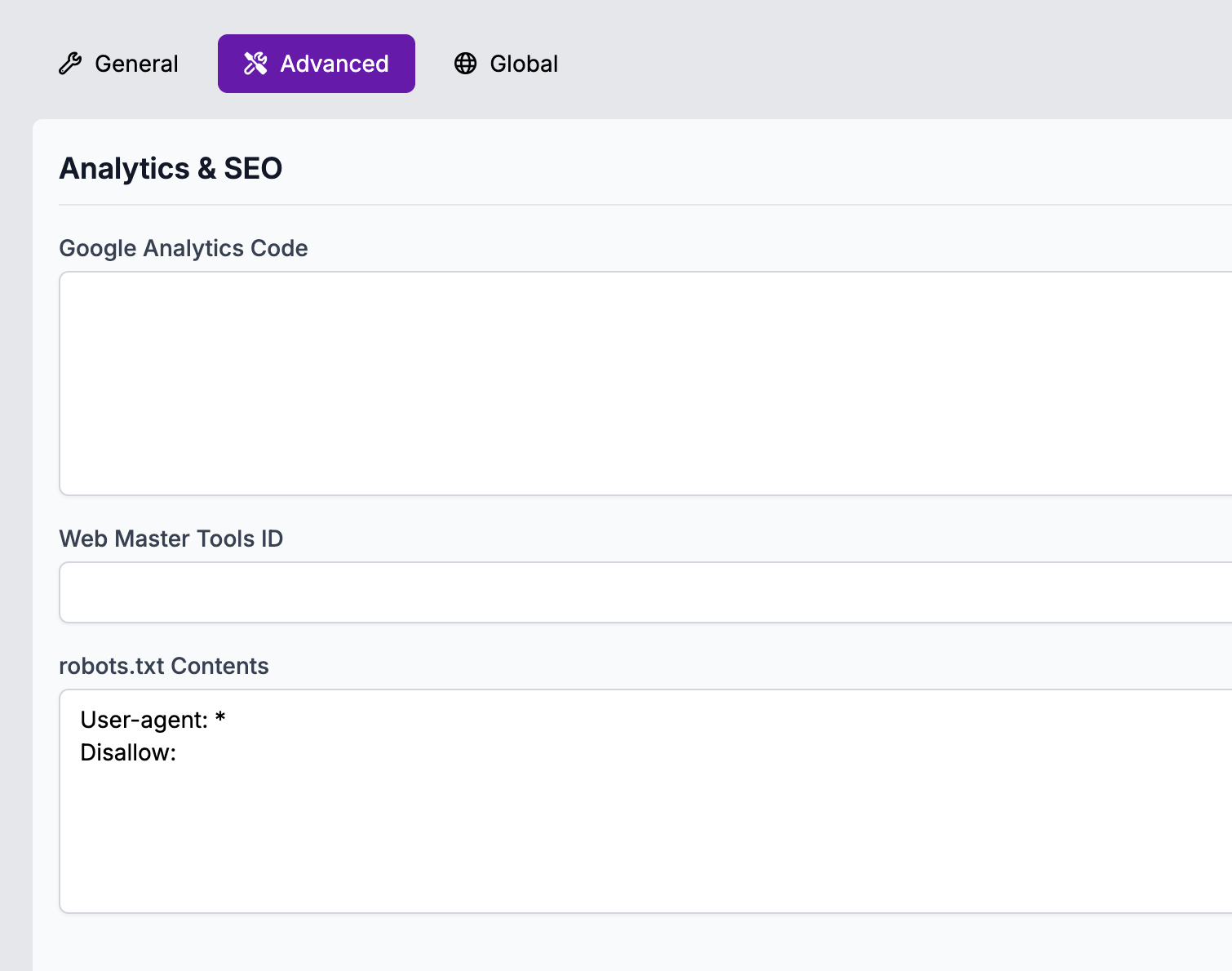
The Advanced tab provides access to more technical and behind-the-scenes settings that impact your site's performance, user experience, and SEO.
System Configuration
These settings control the fundamental architecture and behaviour of your website.
- Main Menu Depth: This integer field controls the maximum hierarchical depth of your website's navigation menu. For example, a setting of
2would allow a main menu item and one level of sub-items. A setting of3would allow for main items, sub-items, and sub-sub-items. Setting this to a sensible limit (e.g., 2 or 3) is a best practice for good usability, as overly deep navigation can make it difficult for users to find what they're looking for. - Active Theme: The Active Theme field determines the entire visual appearance of your website. A "theme" is a collection of files that dictate the site's layout, colours, typography, and overall design. By changing the theme, you can completely overhaul your site's look and feel without altering any of the content. This allows for rapid redesigns and style changes.
- Site URL (links in emails will use this): This is the canonical URL of your website (e.g.,
https://www.yourdomain.com). It is a critical setting for generating absolute links in emails sent by the system, such as password resets or account notifications. Using a full, absolute URL ensures that links are clickable and work correctly, regardless of where the email is opened.
Social Media
This section centralises the links to your various social media profiles. The links you enter here are typically used to automatically populate social media icons across your site.
- Facebook URL: The full URL of your company's official Facebook page.
- X (Twitter) URL: The full URL of your company's profile on X.
- YouTube URL: The full URL of your company's YouTube channel.
- LinkedIn URL: The full URL of your company's LinkedIn profile.
Analytics & SEO
These settings are crucial for tracking your website's performance and ensuring it is properly indexed by search engines.
- Google Analytics Code: Your Google Analytics tracking ID, typically in the format
G-XXXXXXXXXXfor a GA4 property. This ID is used to connect your website to your Google Analytics account. Once connected, Google Analytics can collect data on traffic sources, user behaviour, conversions, and more. Entering this ID here automatically embeds the necessary tracking code on every page of your site. - Web Master Tools ID: This field is a universal placeholder for verification codes provided by various search engine webmaster tools (e.g., Google Search Console, Bing Webmaster Tools). By entering the provided ID, you prove to the search engine that you own the site, which in turn unlocks a wealth of data on how your site is performing in search results, including indexing status and keyword performance.
- robots.txt Contents: The
robots.txtfile is a plain text file that lives at the root of your website. It is a set of rules that tells well-behaved web crawlers (like those from Google, Bing, etc.) which parts of your site they should or should not crawl. While it is not a security measure (as malicious bots can ignore it), it is a vital tool for SEO to prevent search engines from indexing pages that are not intended for public view, such as administrative areas or private files. The defaultDisallow:line is a standard starting point for defining which directories you want to hide from crawlers.